
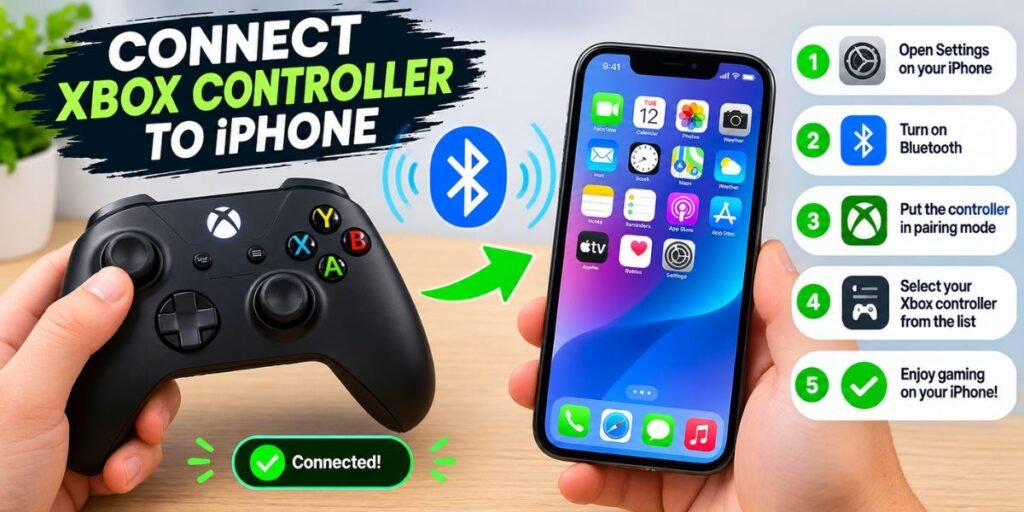
Quick version: hold the pair button on the controller, open Bluetooth on your iPhone, tap “Xbox Wireless Controller.” Takes under a minute.
I’m writing this because I got tired of fighting touch controls [add: which game, and what annoyed you]. If you’ve got an Xbox pad lying around, your phone can use it. No app, no cable, no special setup.
Which Xbox controllers work?
Not all of them, and this trips people up. The Xbox Series X|S controller works. So does the newer Xbox One controller, the one with Bluetooth. The very old Xbox One pads without Bluetooth don’t connect to an iPhone at all.
A quick check: look at the plastic around the Xbox button. If it’s one solid piece with the button, it has Bluetooth. If the bumpers and the Xbox button sit in a separate plastic piece, it’s the older kind and won’t work. [Add: which controller you used.]
You also need iOS 13 or later, which pretty much every iPhone in use has now. To check, open Settings, then General, then About.
Pairing the controller
Make sure the batteries are fresh or the pad is charged. Low power makes pairing flaky.
- Press the Xbox button to turn the controller on.
- Find the small pair button on the top edge, between the bumpers, next to the USB-C port.
- Hold it for a few seconds. The Xbox logo will start flashing quickly.
- On your iPhone, open Settings and tap Bluetooth.
- Wait for “Xbox Wireless Controller” to show up under Other Devices, then tap it.
- Accept the pairing request if one appears.
When the logo stops flashing and stays lit, you’re connected. [Add: your iPhone model, how long it took, and whether it worked the first time.]
Next time, just press the Xbox button and it reconnects by itself.
Games that support controllers
Pairing is the easy part. Whether a game uses the controller is another story. Apple Arcade is the safest place to start, and a lot of popular App Store games work too, like Minecraft and Call of Duty: Mobile. For more information about using game controllers with iPhone, check Apple’s official guide to connecting a game controller.
To check before you download, open the game’s App Store page, scroll to the Information section, and look for “Game Controller” under Supported Features.
Playing Xbox games on your iPhone
This is where it gets fun. If you own an Xbox console, the Xbox app on iPhone can stream games from it over your home network, so you can play from bed or the sofa. Install the app, sign in, and turn on remote features on your console. Then connect the controller as above and pick your console in the app.
You can also play without a console through cloud gaming. You’ll need a Game Pass plan that includes cloud gaming, and you open it in Safari at xbox.com/play. Adding it to your Home Screen makes it feel more like an app.
Either way, your internet matters a lot. A strong Wi-Fi connection, ideally 5GHz, makes the difference between smooth and unplayable. [Add: how it ran for you and what internet you have.]
What about the face buttons and the rest?
Everything works as you’d expect, meaning sticks, triggers, bumpers and the D-pad. Some features on the console don’t carry over, like the Share button on Series controllers, which may not do anything on iPhone. If a game feels off, look for a remap or controller option in its settings.
Disconnecting or switching back to your Xbox
Want the controller back on your console? Open Settings, then Bluetooth, tap the little “i” next to the controller, and choose Disconnect or Forget This Device. Disconnect keeps the pairing. Forget wipes it.
Then, to use it with the console again, turn the console on and press the Xbox button. If that doesn’t work, hold the pair button again to reconnect.
When it won’t connect
Most of the time, the controller isn’t in pairing mode. Turn it off, then hold the pair button until the logo flashes fast. A slow pulse means it’s trying to reconnect to something else, probably your console.
If it pairs but the game ignores it, the game probably doesn’t support controllers. Check the App Store page.
If it keeps dropping out, charge it, move closer, and toggle Bluetooth off and on. Still no luck? Forget the device and start fresh.
One more odd thing: if your Xbox is on nearby, the controller may jump to it instead of your phone. Switch the console off while you pair.
Is it worth it?
For me, yes, although a full-size pad is awkward on the go. At home on the sofa it’s great. Out and about, a clip-on holder helps. [Add: your honest verdict, would you use it daily?]
Final thoughts
Hold pair, tap the controller in Bluetooth, and play. If something goes wrong, forget the device and pair again. That fixes most issues.Frequently Asked Questions
Faqs
Can I connect an Xbox controller to an iPhone?
Yes. Controllers with Bluetooth, like the Xbox Series X|S and newer Xbox One pads, work with iOS 13 and later.
How do I put an Xbox controller in pairing mode?
Turn it on, then hold the small pair button on the top edge until the Xbox logo flashes quickly.
Which Xbox controllers don’t work with iPhone?
Older Xbox One controllers without Bluetooth can’t connect to an iPhone wirelessly.
Why won’t my Xbox controller connect to my iPhone?
Usually it isn’t in pairing mode, the battery is low, or it’s reconnecting to your console. Charge it, turn the Xbox off, and try again.
Can I play Xbox games on my iPhone?
Yes. You can stream from your own console with the Xbox app, or use cloud gaming at xbox.com/play with a compatible Game Pass plan.
Do all iPhone games support an Xbox controller?
No. Check the game’s App Store page for “Game Controller” under Supported Features.
How do I disconnect my Xbox controller from my iPhone?
Go to Settings, then Bluetooth, tap the “i” next to the controller, and choose Disconnect or Forget This Device.