
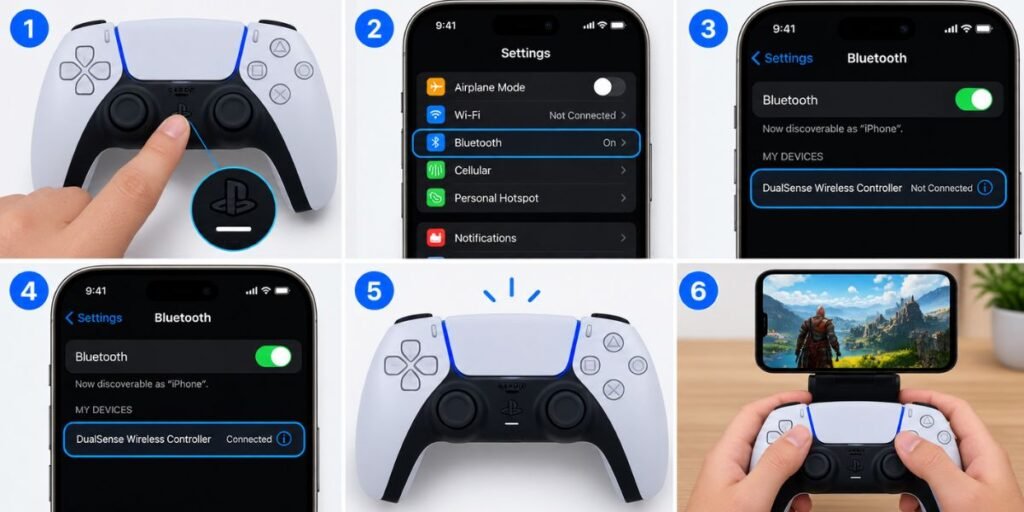
You don’t need an app for this, and you don’t need a cable. Put the DualSense in pairing mode, open Bluetooth on your iPhone, tap the controller. Done.
I started doing this because mobile touch controls drove me up the wall [add: which game made you give up on touch controls]. Anything with a joystick feels clumsy when your thumbs are covering half the screen. A real controller fixes that straight away, and if you already own a PS5, you’ve got one in the house.
So here’s how to pair it, which games actually work, how Remote Play fits in, and what to try when it won’t connect.
First, Will It Work With Your iPhone?
Almost certainly. Apple added DualSense support in iOS 14.5, which came out years ago, so unless your phone is really old you’re fine. To check, go to Settings, General, About, and look at the software version. Below 14.5? Update first.
One limit worth knowing now so it doesn’t annoy you later. On iPhone the DualSense behaves like an ordinary controller. Buttons, sticks, triggers and the D-pad all work. The adaptive triggers and the detailed haptics that make the PS5 feel special? Not on iPhone. Some games do give you basic vibration, but that’s about it.
The DualSense Edge pairs the same way, by the way.
Pairing It, Step by Step
Charge the controller a bit first if it’s nearly flat. A dying battery can make pairing weirdly unreliable, and you’ll waste time blaming the phone.
- If the light bar is glowing, hold the PlayStation button for about 10 seconds until it switches off.
- Hold the PlayStation button and the Create button together. Create is the small one on the left of the touchpad.
- Wait until the light bar flashes fast. That’s pairing mode.
- On the iPhone, open Settings, tap Bluetooth, and make sure it’s on.
- Under Other Devices you’ll see “DualSense Wireless Controller.” Tap it.
- If a pairing request appears, tap Pair.
Once the light stays solid, you’re connected. Open a game and test it. [Add: how long it took you and whether anything went wrong.]
From now on you just press the PlayStation button and it reconnects. No need to go through all this again, unless you’ve paired it with something else in between.
Which Games Support It?
Not all of them, and this is where most people get stuck. They pair the controller perfectly, open a game, and nothing happens. Usually the game simply has no controller support.
Apple Arcade is the safest place to start, since nearly everything there works with controllers. Plenty of big App Store games do as well, like Genshin Impact, Call of Duty: Mobile and Minecraft. Emulators and retro-style apps tend to work well too.
To check any game before you download it, open its App Store page, scroll to the Information section, and look for “Game Controller” under Supported Features. If you see it, you’re good. [Add: the two or three games you’ve actually tested.]
PS Remote Play
This is honestly my favorite use for it. Remote Play streams your PS5 to your phone, so you can play console games in bed, in the kitchen, or while someone else is hogging the TV.
Download PS Remote Play from the App Store and sign in with the PlayStation account you use on your console. On the PS5, turn on Remote Play under Settings, System, Remote Play. Pair the DualSense with your phone as above, open the app, pick your console, and play.
Two things make a big difference. Wi-Fi quality matters a lot, so if you can, plug the PS5 into your router with Ethernet. And leave the console in Rest Mode instead of switching it fully off, otherwise your phone won’t find it. [Add: how Remote Play ran for you, and what internet you have.]
What About Using a Cable?
Newer iPhones have USB-C, so in theory you can plug the controller straight in. In practice, results depend on your model and iOS version, and older Lightning iPhones would need an adapter. I’d skip it. Bluetooth is easier and works the same on every iPhone that supports the controller.
Switching It Back to Your PS5 or PC
Maybe you want the controller on your console again. Open Settings, Bluetooth, and tap the little “i” next to the controller. Disconnect keeps the pairing so you can reconnect later. Forget This Device wipes it, and you’ll need to pair from scratch next time.
If It Won’t Connect
Nine times out of ten the controller just isn’t in pairing mode. Switch it fully off, then hold PlayStation and Create again until the light bar flashes quickly. Not a slow pulse, a proper fast flash.
If it connects but the game ignores it, that’s almost certainly the game. Check its App Store page, and look in its settings too, because some games hide a controller toggle in there.
Random disconnects? Charge the pad, move closer, and flip Bluetooth off and on. Still dropping out? Forget the device and pair again. That cures most things.
One more odd case: the controller keeps jumping to your PS5 instead of the phone. It’s reconnecting to the console automatically because the console is nearby. Switch the PS5 off while you pair, and it behaves.
And if the buttons feel wrong in a particular game, look for a remap option in its control settings. Newer iOS versions also have controller options under Settings, General, Game Controller.
Is the DualSense a Good Phone Controller?
It’s good, but it’s big. For gaming at a desk or on the sofa it’s great, comfortable and sturdy, and it costs nothing extra if you already own a PS5. On a train or a bus, though, it’s awkward. If you want something portable, a clip-on controller that holds the phone makes more sense. [Add: your honest opinion, would you use it every day?]
Final Thoughts
Pairing takes about thirty seconds, and it works with a huge number of games. Hold PlayStation and Create, tap the controller in Bluetooth, play. If something breaks, forget the device and start over.
FAQs
Can I connect a PS5 controller to my iPhone?
Yes. Any iPhone running iOS 14.5 or later supports it. Put the controller in pairing mode and select it in Bluetooth settings.
How do I put a PS5 controller in pairing mode?
Turn it off, then hold PlayStation and Create together until the light bar flashes quickly. Create is the small button left of the touchpad.
Do adaptive triggers work on iPhone?
No. The DualSense works as a standard controller on iPhone, so buttons, sticks and triggers work, but adaptive triggers and detailed haptics don’t.
Which iPhone games support a PS5 controller?
Most Apple Arcade games and many popular App Store titles do. Look for “Game Controller” under Supported Features on the game’s App Store page.
Can I use PS Remote Play with a DualSense on iPhone?
Yes. Install PS Remote Play, sign in, enable Remote Play on your PS5, and pair the controller over Bluetooth. A stable connection helps a lot.
Why won’t my PS5 controller connect to my iPhone?
Usually it’s not in pairing mode, the battery is low, or it’s reconnecting to your PS5. Charge it, turn the console off, and try again. If it still fails, forget the device and re-pair.
How do I disconnect it from my iPhone?
Settings, Bluetooth, tap the “i” beside the controller, then choose Disconnect or Forget This Device.