
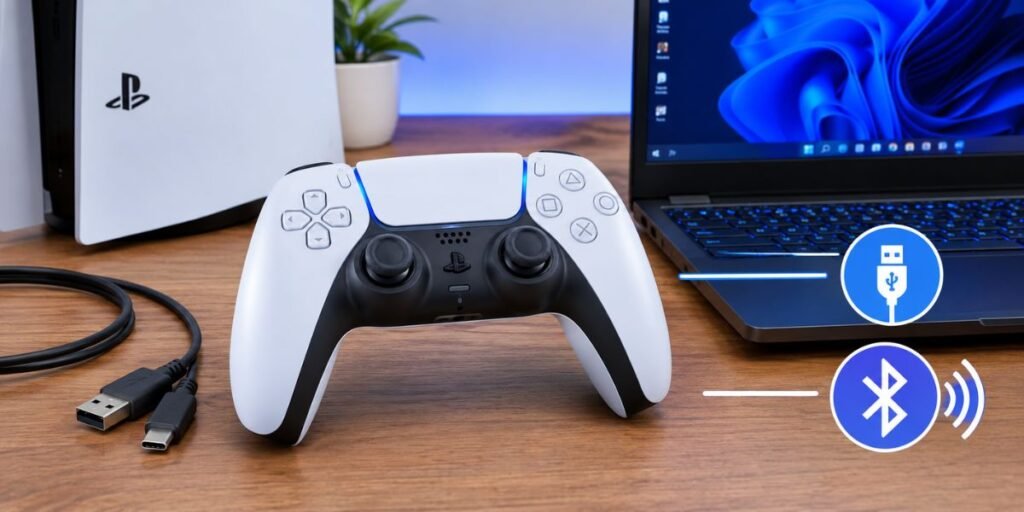
Quick answer first: plug in a USB-C cable and Windows sorts out the rest. Want wireless? Hold two buttons, pair it in Settings, done. Both take a couple of minutes.
I’ve used the DualSense on PC for a while now [add: how long, and which games], and it’s the pad I keep going back to. This guide covers both connection methods, Steam setup, what to do with games that aren’t on Steam, and the problems that tend to pop up. At the end there’s a bit on running a PC and a PS5 off one monitor.
Is a Controller Even Worth It on PC?
Depends on the game. Shooters? Keep the mouse. But Rocket League, Cuphead and Dark Souls? A controller wins, no contest. Same story for racing games and anything where you’re dodging, rolling or jumping around for hours.
And the DualSense isn’t just any pad. The triggers actually push back. Pull one in a driving game and the brake feels stiff, draw a bow and you feel the tension build. The vibration is more detailed than old-school rumble too. Death Stranding and Marvel’s Spider-Man Remastered both support it on PC [add: any game you tried it in, and what it felt like].
What to Have Ready
- The controller itself
- A USB-C cable. USB-C to USB-A works, so does USB-C to USB-C. Heads up: the controller doesn’t come with one, so check your drawer before ordering
- Bluetooth on your PC (built in, or a small USB adapter) if you want to go wireless
- Steam, DS4Windows or DualSenseX, only if you need them
Method 1: USB Cable
Easiest one. Start here.
- Plug the cable into the controller.
- Plug the other end into your PC.
- Wait a few seconds while Windows installs the driver.
That’s the whole thing. It also charges the controller while you play, and there’s zero wireless lag, so competitive players often prefer it. No Bluetooth on your PC? This is your method anyway.
Method 2: Bluetooth
Same controller, no cable. Bit more fiddly, but you only do it once.
- If the controller is already on, hold the PlayStation button for around 10 seconds until it switches off.
- Now hold PlayStation and Create together. Create is the small button just left of the touchpad.
- Wait for the light bar to flash fast. That’s pairing mode.
- On the PC, go to Settings, then Bluetooth & devices. Windows 10 calls it Bluetooth & other devices.
- Click Add device, then Bluetooth.
- Choose “Wireless Controller” or “DualSense Wireless Controller.”
Next time, just press the PlayStation button and it reconnects.
The PS5 Pairing Problem
Here’s the one that trips people up. Use the controller on your console, come back to the PC, and it won’t connect. Why? The controller only remembers one device at a time in a way that often confuses Windows. Fix: delete the old “Wireless Controller” from your Bluetooth list and pair again. [Add your own story: did this happen to you? How many times before you figured it out?]
Steam Setup
Steam is the least painful way to use a DualSense.
- Connect the controller.
- Open Steam, then Settings, then Controller.
- Switch on PlayStation Configuration Support.
- Tweak the layout if you want.
Steam usually presents the controller to games as an Xbox-style pad, so most titles just work. If a game supports DualSense properly, the adaptive triggers and haptics can work as well.
What About Games Outside Steam?
You’ve got three routes.
Add the game to Steam. Hit “Add a Non-Steam Game” in your library. The game then gets Steam’s controller settings. Quick and free.
DS4Windows. Tricks the game into thinking you’re holding an Xbox 360 controller. It’s free, it’s actively updated, and it works with a huge range of games.
DualSenseX. Built for the special features, so the triggers and haptics can work in some supported games. Paid, though.
So which one? If you only want the controller to work, go with DS4Windows. If the trigger feel matters to you, try DualSenseX.
Windows 10 or 11?
Both work. Windows 11 pairs a little more smoothly and shows battery level more clearly. On Windows 10 it’s the same process, just rougher around the edges.
When Things Go Wrong
Not showing up in Bluetooth? Probably not in pairing mode. Power it off and hold PlayStation + Create again until the light flashes quickly.
Keeps dropping out? Remove it from the Bluetooth list and pair from scratch. Move closer too. If your adapter sits behind the tower, the signal can be weak.
Game doesn’t see it? Start the game from Steam, or open DS4Windows first.
Xbox buttons on screen? Nothing’s broken. The game just doesn’t include PlayStation icons.
One Monitor, PC and PS5
Got a PlayStation-only game you want to play? Keep your PC plugged in and add the PS5 to a second HDMI port. Then change the monitor’s input when you want to switch. Most monitors have at least two ports, and they often beat TVs on response time, which is handy for fast games.
For this you need an HDMI cable, a free HDMI port, and speakers or headphones if the monitor can’t output sound.
Sound on a Monitor
The PS5 doesn’t pair directly with Bluetooth headphones. So pick one of these:
- Plug into the controller. There’s a 3.5mm jack on the bottom. Simple, works with any monitor.
- Plug into the monitor. If it has an audio-out jack, use it. On the PS5 go to Settings, Sound, Audio Output and pick the HDMI device.
- Soundbar via eARC. Connect the PS5 to a regular HDMI port on the monitor. Then run an HDMI 2.1 cable from the monitor’s eARC port to the soundbar’s eARC input. Enable eARC on both and set the PS5 output to an AV amplifier.
- USB wireless headset. Plug the dongle into the PS5. It normally finds the headset by itself.
- HDMI audio extractor. A small box between the PS5 and monitor with a 3.5mm or optical output.
Bottom Line
Cable or Bluetooth, it’s an easy setup. Pair it, switch on PlayStation support in Steam, and reach for DS4Windows or DualSenseX when a game needs it. Have a PS5 as well? One monitor handles both.
FAQs
Can I connect a PS5 controller to a PC without Bluetooth?
Yes. Just use a USB-C cable. Plug it into the controller and your PC, and Windows will detect it on its own. If your PC has no Bluetooth, this is the easiest way, and a cheap USB Bluetooth adapter can add wireless later if you want it.
Why won’t my PS5 controller connect to my PC?
Most of the time it’s one of three things: the controller isn’t in pairing mode, an old pairing is stuck in Windows, or the Bluetooth adapter is too far away. Turn the controller off, hold PlayStation + Create until the light bar flashes fast, and try again. If that fails, remove “Wireless Controller” from your Bluetooth devices list and pair it from scratch.
Do I need DS4Windows to use a PS5 controller on PC?
Not always. Steam supports the DualSense out of the box, and many games work without any extra software. DS4Windows is useful for games outside Steam that don’t recognize the controller, since it makes the pad appear as an Xbox 360 controller.
Is DS4Windows or DualSenseX better?
It depends on what you want. DS4Windows is free and great for simple compatibility. DualSenseX is a paid tool built for DualSense features like adaptive triggers and haptics, so it suits you better if you care about those in supported games.
Do adaptive triggers and haptic feedback work on PC?
In games that support them, yes. Titles like Death Stranding and Marvel’s Spider-Man Remastered offer native DualSense features on PC. In games without support, you’ll get basic controller functions only. A wired USB connection is usually the more reliable choice for these features.
Can I use the same PS5 controller on my PC and my PS5 console?
Yes, but you’ll need to re-pair it each time you switch over Bluetooth. If it stops connecting to your PC after using it on the console, delete the old “Wireless Controller” entry in Windows Bluetooth settings and pair it again.
Why do I see Xbox buttons instead of PlayStation buttons in my game?
Nothing is wrong. Many PC games are designed around Xbox prompts, so they show those icons even with a PS5 controller. Games with native DualSense support will display the PlayStation symbols instead.